
Hidden Cameras for the Office
Most workplaces don’t need a full security system to address common problems — shrinkage from a shared supply area, figuring out who’s been in the back office after hours, keeping an eye on a register or cash drawer when you can’t always be there. A small hidden camera in a natural-looking object is usually all it takes. No IT department, no mounting hardware, no obvious cameras that get noticed and worked around. Just a pen on a desk or a charger in an outlet doing a quiet job.
Discreet Office Cameras That Don't Look Like Cameras


What to Look for in a Hidden Office Camera
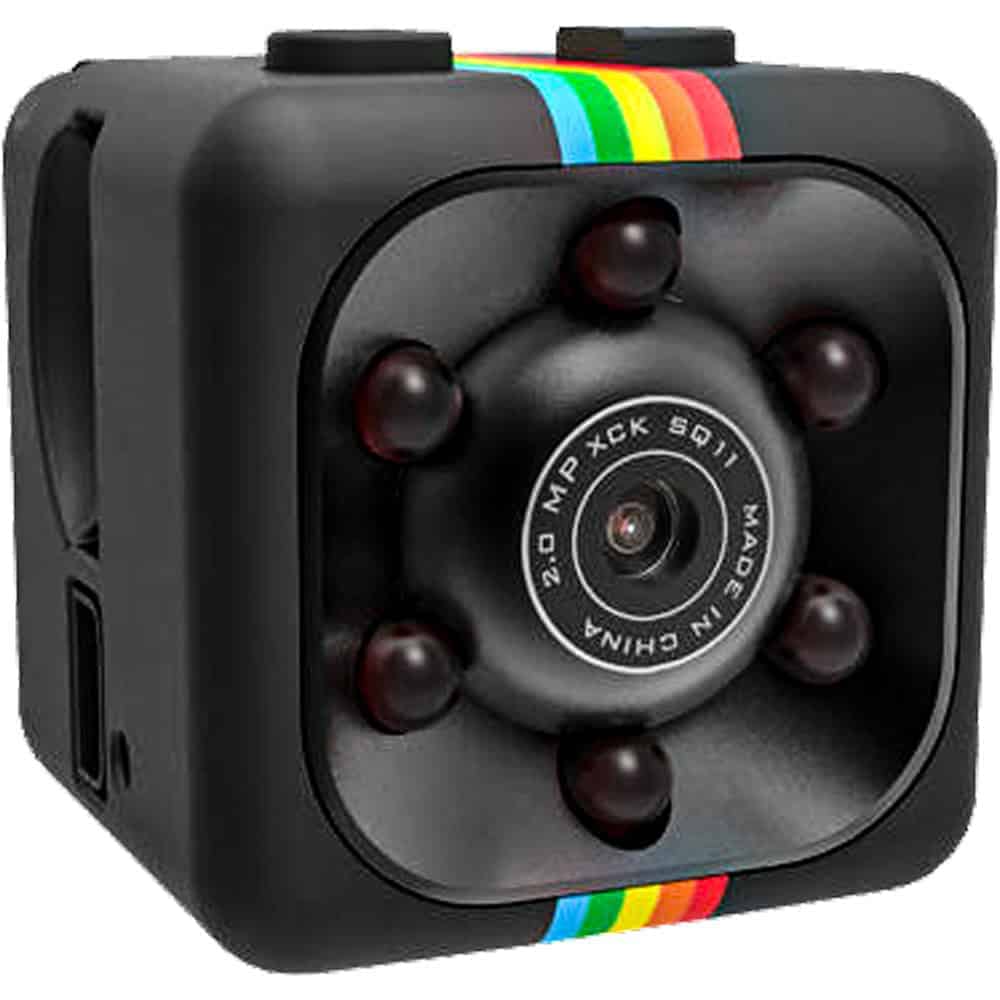
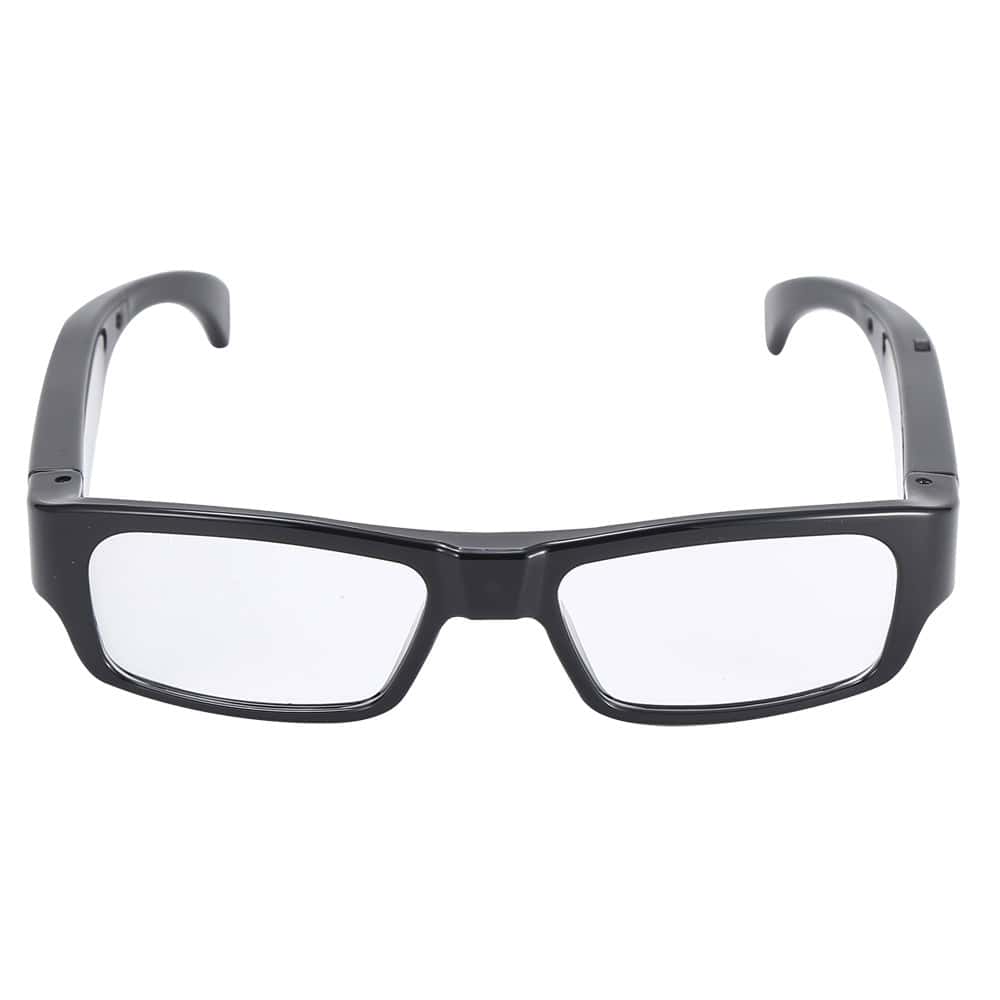
Object type that fits your office. The right camera is the one that looks like it belongs where you need to put it. A pen camera on an office desk is invisible. A USB charger by a workstation outlet doesn’t raise any questions. A mini camera tucked on a bookshelf blends right in. Match the disguise to the environment — a camera that looks out of place defeats the purpose.
Resolution. The HD Pen Camera records at 1080P, which is the standard you want if you’re going to use footage to identify someone or document an incident. Lower resolution cameras can work for general monitoring but may not give you usable detail on faces or items. If the footage needs to be actionable, go for 1080P.
Motion activation vs. continuous recording. For an office camera left running all day, motion activation is usually the right call. It significantly reduces storage usage and makes it easier to find relevant clips. Most of these cameras support both modes — check the specific model to confirm.
Built-in DVR keeps things simple. All of these cameras record to a memory card without needing WiFi, an app, or a network connection. For office environments where IT policies can be complicated, or where you don’t want footage stored on a cloud service, that’s a practical benefit. You pull the card, review the footage, done.
Placement and angle planning. Spend a few minutes thinking about where the camera will actually point before you commit to a spot. A pen on a desk should face the area of concern — register, storage closet, entry point. A charger in an outlet should be at a height where it covers the relevant area, not pointing at the ceiling or floor.
How to Set Up a Hidden Camera in an Office
The USB charger model is probably the easiest to deploy in most office settings — plug it in anywhere there’s an outlet. In most offices, USB chargers are everywhere and no one looks at them. Insert a memory card, set to motion activation if you don’t want to review hours of empty-room footage, and you’re set.
For desk monitoring, the HD pen camera is hard to beat. Put it in a pen holder, angle it toward the area you want to watch, and it just sits there. It’s a real pen too, so there’s no reason for anyone to think it’s anything other than a pen.
Know your state and local laws before you set up any monitoring in a workplace. Most states allow employers to use video monitoring in non-private areas of a business, but there are restrictions on audio and on monitoring areas where employees have a reasonable expectation of privacy. See our Laws & Restrictions page at https://stunmaster.com/law-and-restrictions/ for an overview, and consult an employment attorney if you have specific questions.
Frequently Asked Questions
A: In most states, employers can use video monitoring in non-private business areas — workspaces, stockrooms, cash registers, common areas. Audio recording is a different matter, with stricter requirements in many states. Private areas like bathrooms and changing rooms are off-limits everywhere. The specifics vary by state, so check our Laws & Restrictions page at https://stunmaster.com/law-and-restrictions/ and consider consulting an employment attorney if you’re setting up monitoring in a shared workspace.
A: The HD Pen Hidden Camera is the natural choice for desk monitoring — it records 1080P HD video, it’s a fully functional pen, and it sits in any pen holder without a second glance. For an outlet placement near a desk or workstation, the USB Charger Hidden Camera is equally inconspicuous. Which one makes more sense depends on where exactly you need the camera pointed and what’s available at that location.
A: No — these cameras have built-in DVR and record to a micro SD memory card. No WiFi, no app, no network connection required. That keeps things simple and keeps footage on a physical card you control rather than a cloud service. You pull the card, review footage on your computer, done. If remote viewing from your phone is a priority, that’s a different category of camera.
A: It depends on resolution and whether you use motion activation. At 1080P with motion activation in a typical office, a 32GB card can last several days to a week before you need to review and clear it. Continuous recording fills cards faster. Most of these cameras support cards up to 32GB or 64GB — check the specific model. Rotation is easy: review the card, delete what you don’t need, put it back.
A: Think about what you actually want to monitor and work backward from there. A pen on a desk should face the register, storage area, or entry point you care about. A charger in an outlet should be at a height where the lens angle covers the relevant space. Most of these cameras have a fixed-angle lens, so placement determines coverage. Set it up, do a test recording, and review to make sure the angle is right before you commit to a spot.
Need Help Picking the Right Hidden Camera for Your Office?
Call us at 800-859-5566 -- we can help you figure out which model makes the most sense based on your office layout, what you're monitoring, and any restrictions you need to work around.
Shop All Hidden Cameras